
Microsoft Teams
Connect and manage Microsoft Teams
The EasyUC Session Border Controller connects Microsoft Teams to the ACD. You see the users, phone numbers, meetings and locations of a tenant in the same interface, even without a telephony connection. EasyUC runs in your data centre. You can connect Cisco CUCM in the same installation.
One SBC for multiple Teams tenants
The SBC is included in the EasyUC appliance. It handles the SIP connection to Microsoft Teams and encrypted media traffic. Manage it in EasyUC alongside the associated tenants.
The SBC is multi-tenant. Each Teams tenant gets its own SIP profile, so several companies with separate tenants can make calls through a single installation.
You set the connection per tenant: through the integrated SBC, through your existing SBC with a SIP trunk to EasyUC, or without telephony. Without telephony you manage users, phone numbers, presence, meetings and the User Map of the tenant.
TLS, certificates checked on both sides, and SRTP
Signalling to Microsoft uses TLS 1.2 on port 5061. The SBC validates the other side's certificate against Microsoft's root CAs, and Microsoft validates the SBC's certificate.
Audio is always encrypted with SRTP and always runs through the SBC. Media bypass is not used. You therefore open one fixed RTP port range on the firewall, and every call can be followed in the SIP trace.
| Signalling | SIP over TLS 1.2, 5061/TCP |
|---|---|
| Authentication | mutual TLS against Microsoft's root CAs |
| Media | SRTP, mandatory |
| Crypto suite | AES_CM_128_HMAC_SHA1_80 |
| RTP port range | 20000–20999/UDP |
| Media path | always through the SBC |
| Tenants | one SIP profile per Teams tenant |
| Based on | FreeSWITCH |
Manage SBC certificates
The SBC certificate has to come from a public certificate authority. EasyUC obtains it from Let's Encrypt using the DNS-01 challenge, so the SBC does not need to be reachable over HTTP from the internet.
- 1
Choose a DNS name
For example
sbc01.muster-netz.de, in a domain registered in your Microsoft 365 tenant. - 2
Answer the challenge
EasyUC displays the required TXT record. Add it at your DNS provider or use the configured DNS automation.
- 3
Issue the certificate
Let's Encrypt checks the record and issues the certificate. EasyUC installs it on the SBC.
- 4
Renew
EasyUC can renew the certificate when DNS validation is automated. Manual TXT validation requires a new DNS record. Check the expiry date and status.
Configure trunks and voice routes from EasyUC
After Teams administrator sign-in, EasyUC can configure the PSTN gateway, voice routes and voice routing policy through PowerShell. Check the selected tenant and planned changes before running the operation.
The Teams handbook explains sign-in, preview and confirmation. If you run Direct Routing through your own SBC, its PSTN gateway stays unchanged. EasyUC then writes only its PSTN usage, the voice routes for the EasyUC numbers and its voice routing policy.
The Teams number plan shows all numbers of the tenant with owner and EasyUC target. Every Teams call has a call history with a SIP ladder diagram; you set the retention per tenant between 1 and 365 days.
Log of the automated tenant setup, shortened. Demo data.
ACD features for Teams
Teams calls routed through EasyUC can use IVR scripts, queues and skills. Set up Teams users as agents or attendants and show their presence in the busy lamp field.
Assign the user, phone number and device in the administration interface.
- IVR scripts with text announcements and menus
- Queues and skills
- Attendant console on the Teams client or a Teams phone
- Teams presence in the busy lamp field
- Call reports for Teams and CUCM calls
- Attendant console as a private app in Microsoft Teams
- Scripts reachable through Teams only, without a CUCM number
CUCM and Teams side by side, or Teams on its own
Many organisations move over step by step. Some staff are still on Cisco phones, others already use Teams. EasyUC serves both from one installation.
Side by side
CUCM over JTAPI and Teams through the SBC in one installation. Agents and attendant consoles can be on either side.
Without CUCM
The ACD works with the SBC and Microsoft Teams alone. No CUCM required.
Cisco only
The ACD works with CUCM only. The SBC can be added later.
The existing SBC stays
The tenant keeps calling through your SBC, for example from AudioCodes, Ribbon or Oracle, or through a CUBE. A SIP trunk leads from there to the scripts of the Calling Features. You check the interworking with your SBC during commissioning.
Without telephony
You can use the users, phone numbers, presence, meetings and User Map of a tenant without a SIP trunk. The connection “No telephony” is enough for that.
Presence sync
A call on the Cisco phone sets the Teams user to “In a call”. The module also runs without SBC and ACD.
What you need for Direct Routing
We go through these points with you before the installation. Most of them are Microsoft requirements and apply to any SBC.
Public DNS name
An FQDN for the SBC, for example
sbc01.muster-netz.de, in a domain registered in your Microsoft 365 tenant.Reachability
The SBC must be reachable from the internet under that name.
Certificate
A certificate from a public CA for that name. EasyUC gets it from Let's Encrypt; you need access to the DNS zone or a Cloudflare account.
Firewall: signalling
5061/TCPbetween the SBC and Microsoft's SIP signalling addresses, in both directions.Firewall: media
20000–20999/UDPon the SBC and Microsoft's media port ranges.Teams Phone licences
Every Teams user who calls through Direct Routing needs a Teams Phone licence, for example Teams Phone Standard or an E5 licence.
Tenant administrator
An account with the rights to create the PSTN gateway, voice routes and voice routing policy in the tenant.
Microsoft changes its IP ranges and ports from time to time. During setup we check them against Microsoft's current Direct Routing documentation.
Plan your Teams telephony with EasyUC
Tell us how many tenants you manage, which numbers you plan to use and which ACD features you need. We will discuss the SBC, certificates and connection to your existing telephony.
Existing customers
Licences, updates, invoices and support tickets are in the customer portal.
Go to the customer portalInside EasyUC
Microsoft Teams with EasyUC
Actual views of the Teams area of EasyUC 4.9.67 with demo data: user map, meetings, user profile, connection and Microsoft management.
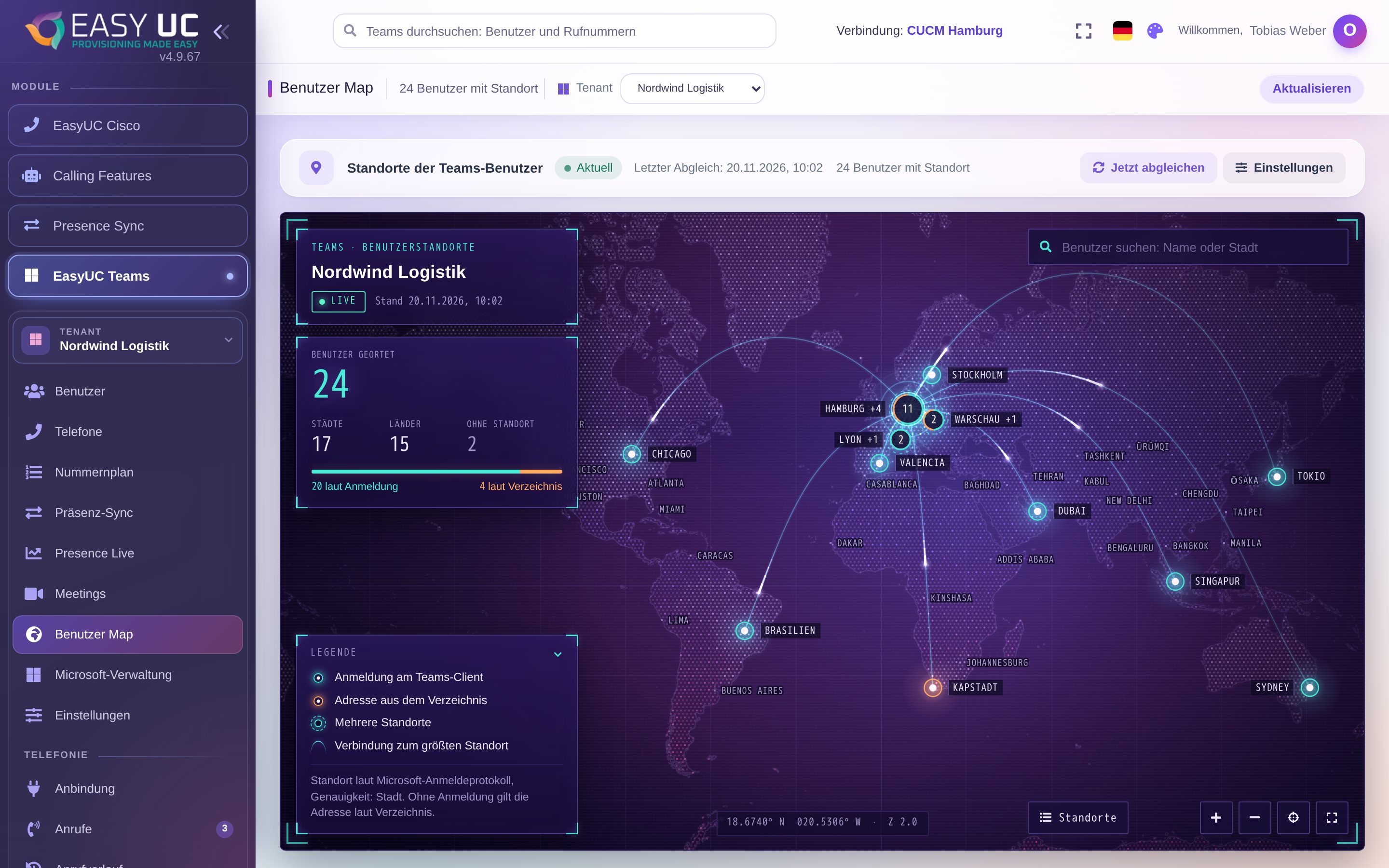
User Map: world overview
The User Map of a tenant with 24 located users, clusters across Europe, key figures and legend. Demo data.
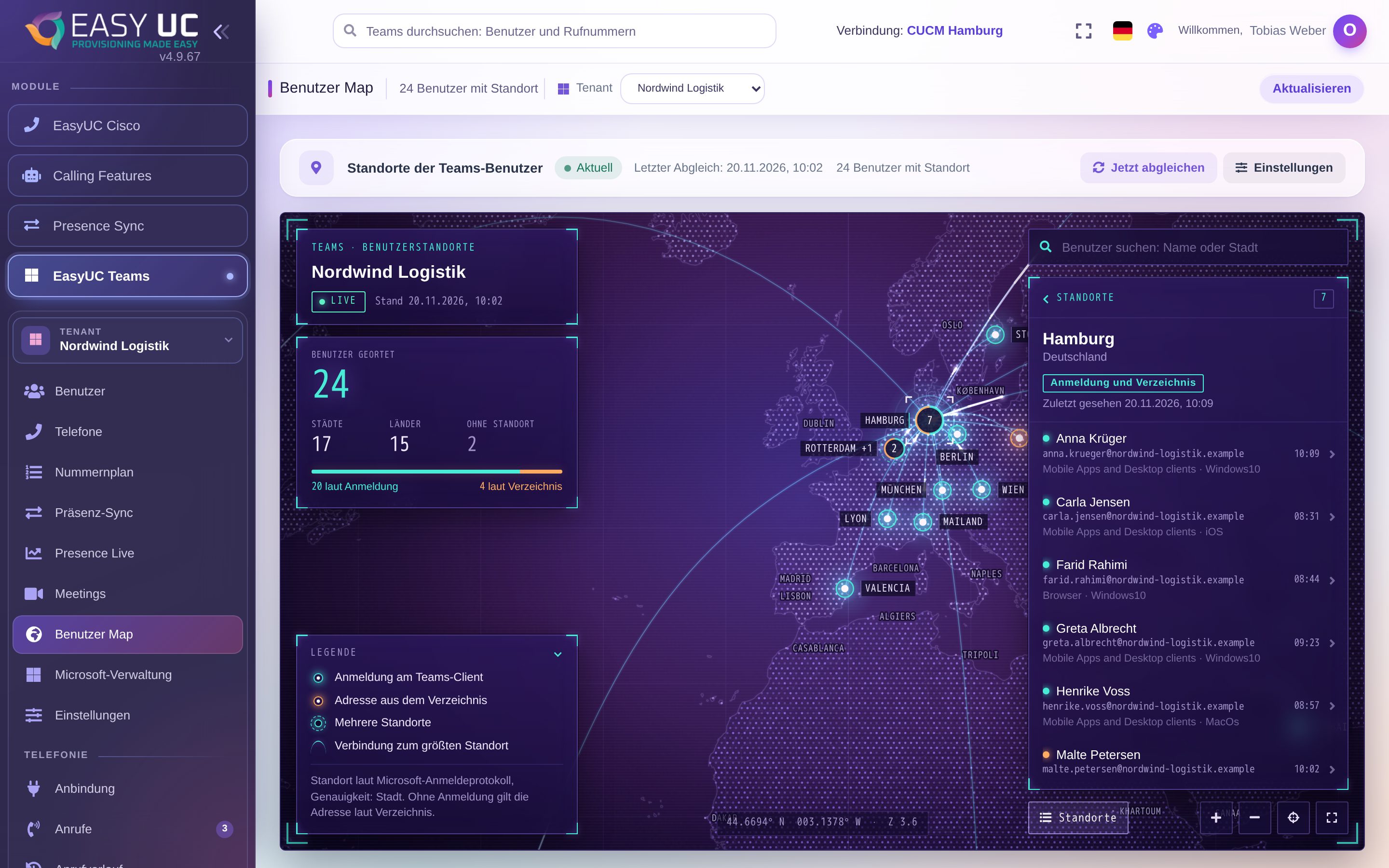
User Map: users of a location
After a click on a location the map lists its users with client and time. Demo data.
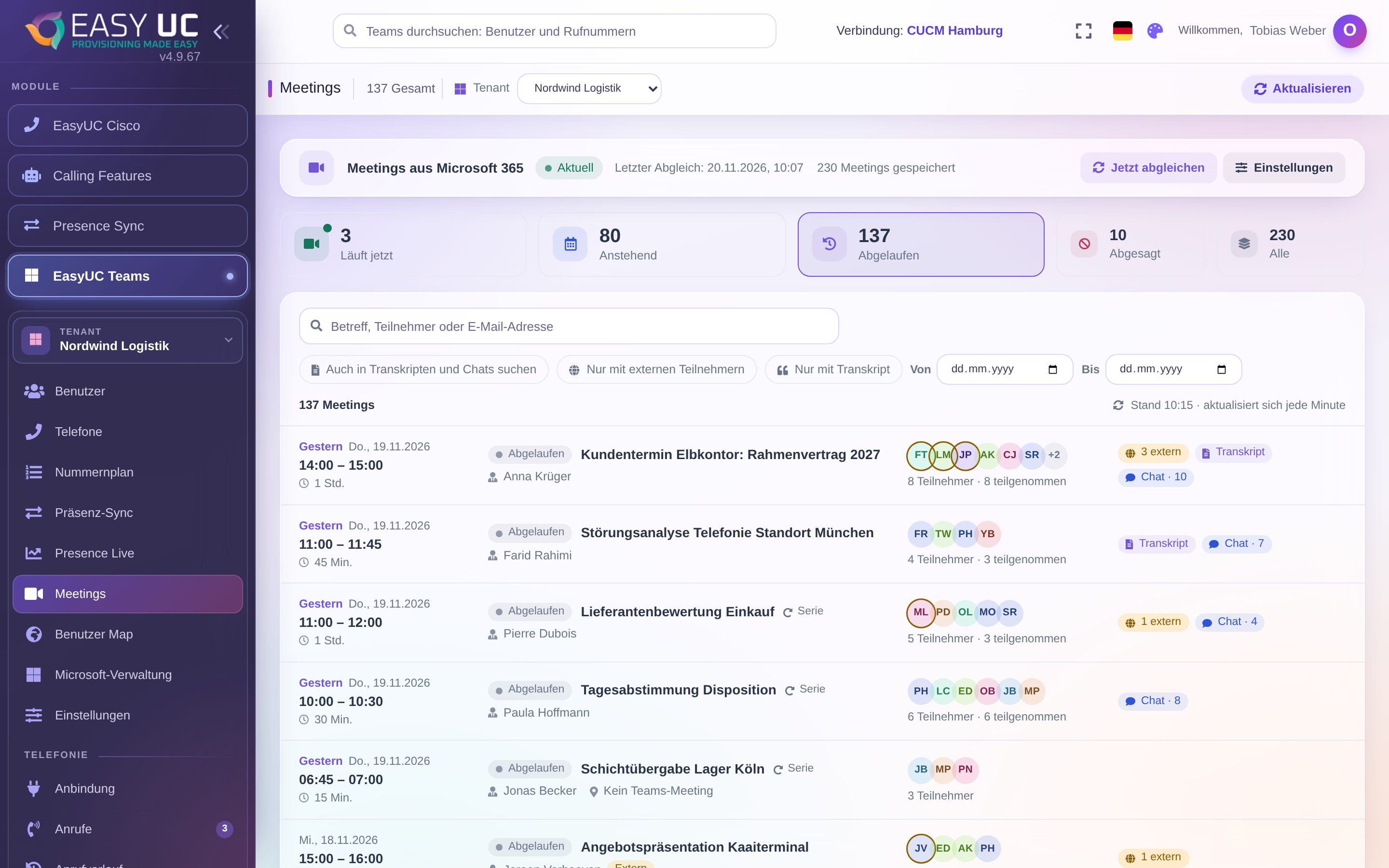
Meetings of a tenant
The Meetings page with the tiles for meetings that are in progress, upcoming, ended and cancelled. Ended meetings show attendance, transcript and chat. Demo data.
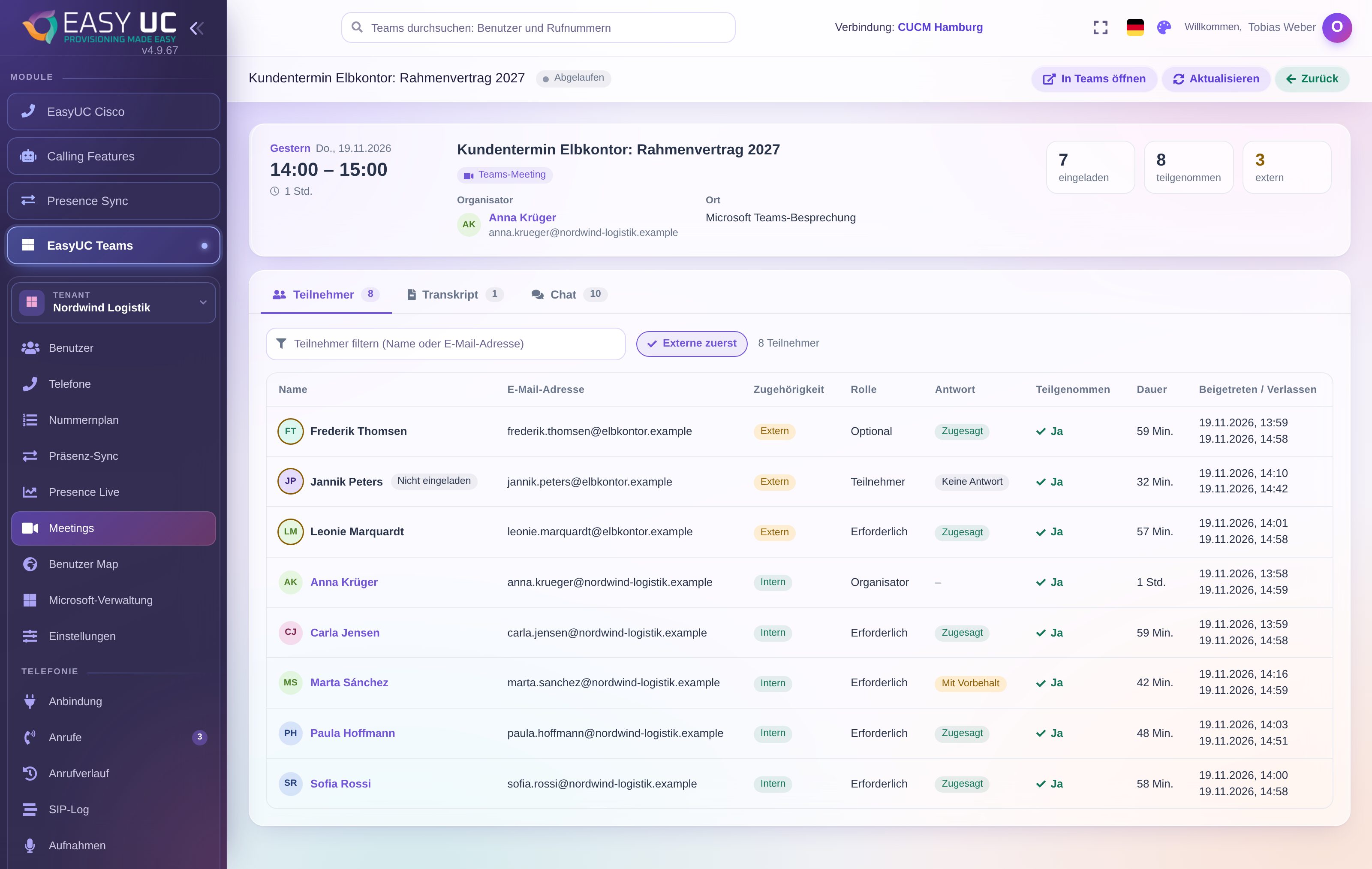
Meeting with participants
The detail page of a meeting with response, attendance, duration and join time per participant. Demo data.
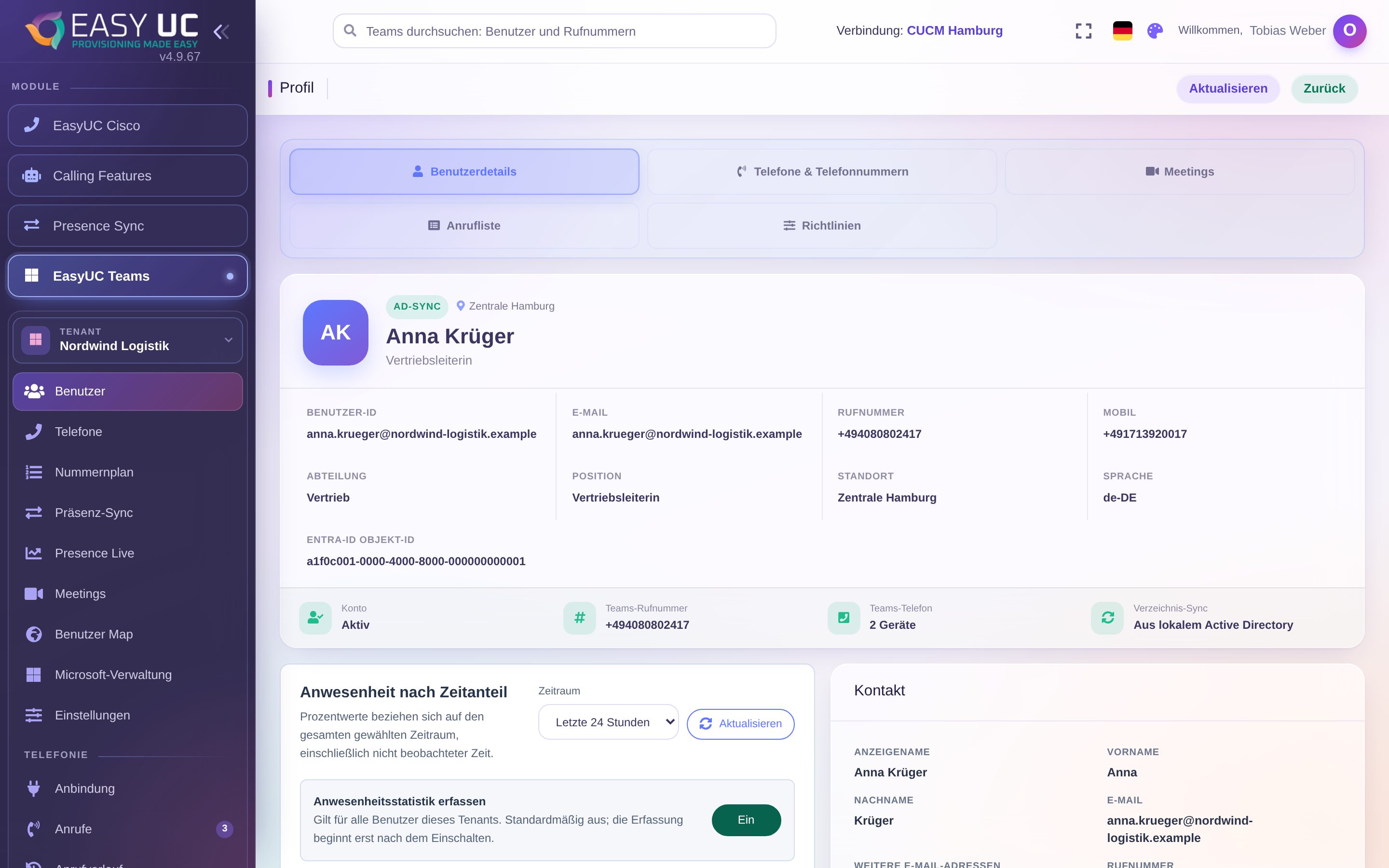
Profile of a Teams user
The profile with header card and the tiles for account, Teams phone number, Teams phone and directory sync. Demo data.
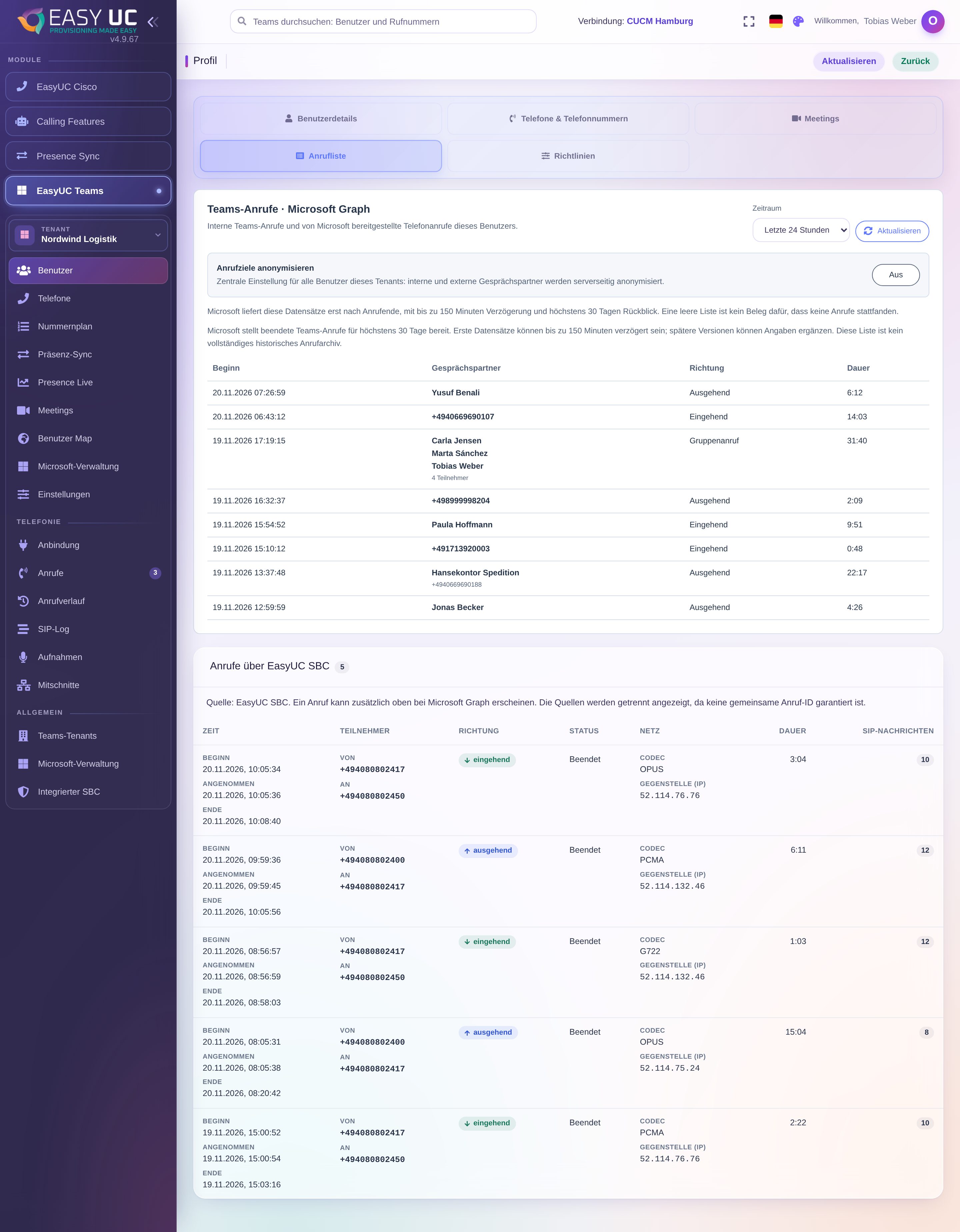
Call list in the user profile
At the top the Teams calls from Microsoft Graph, below them the calls through the EasyUC SBC. The switch “Anonymize call destinations” applies to the whole tenant. Demo data.
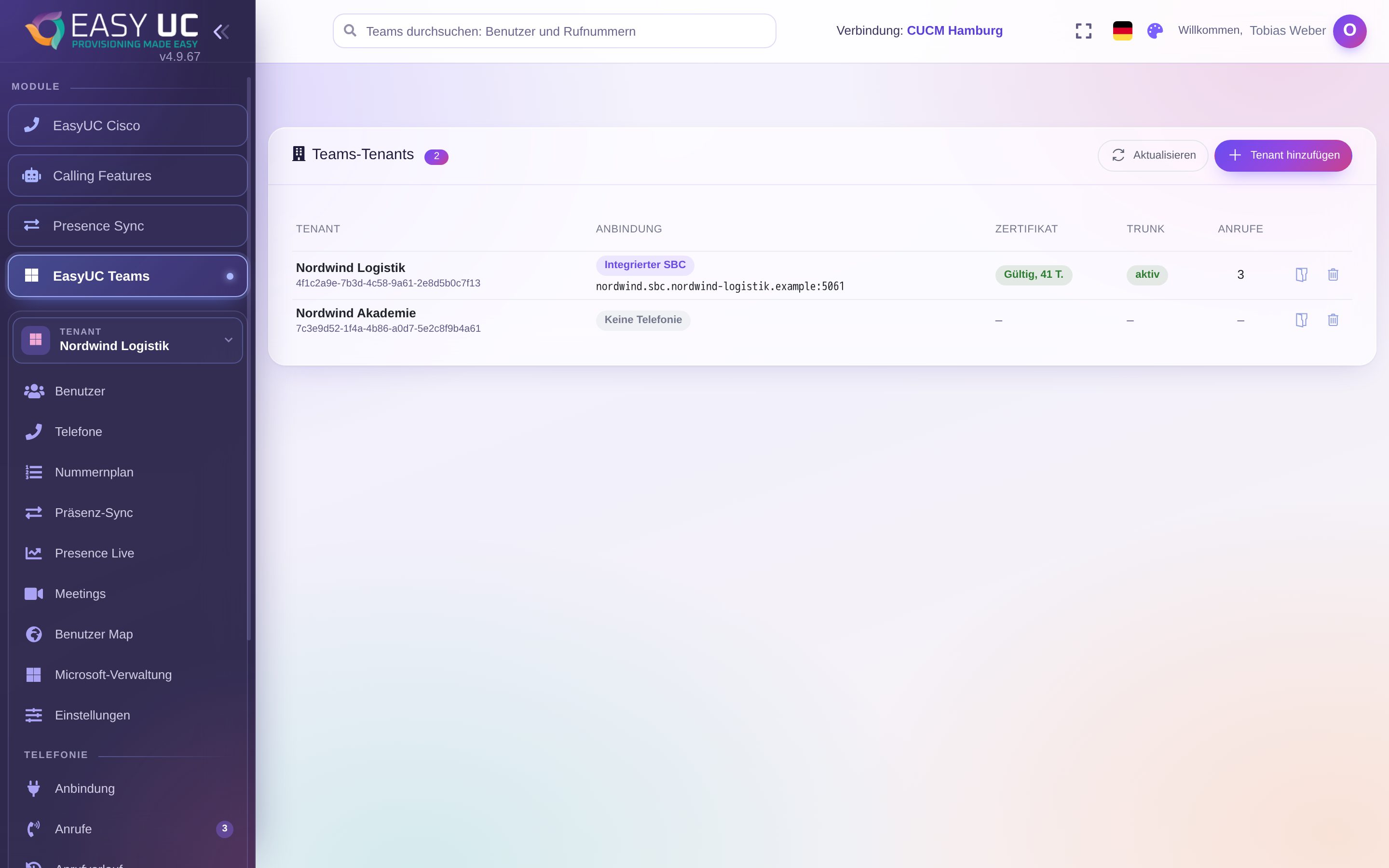
Teams tenants
The tenant list with one tenant on the integrated SBC and one tenant without telephony. Demo data.
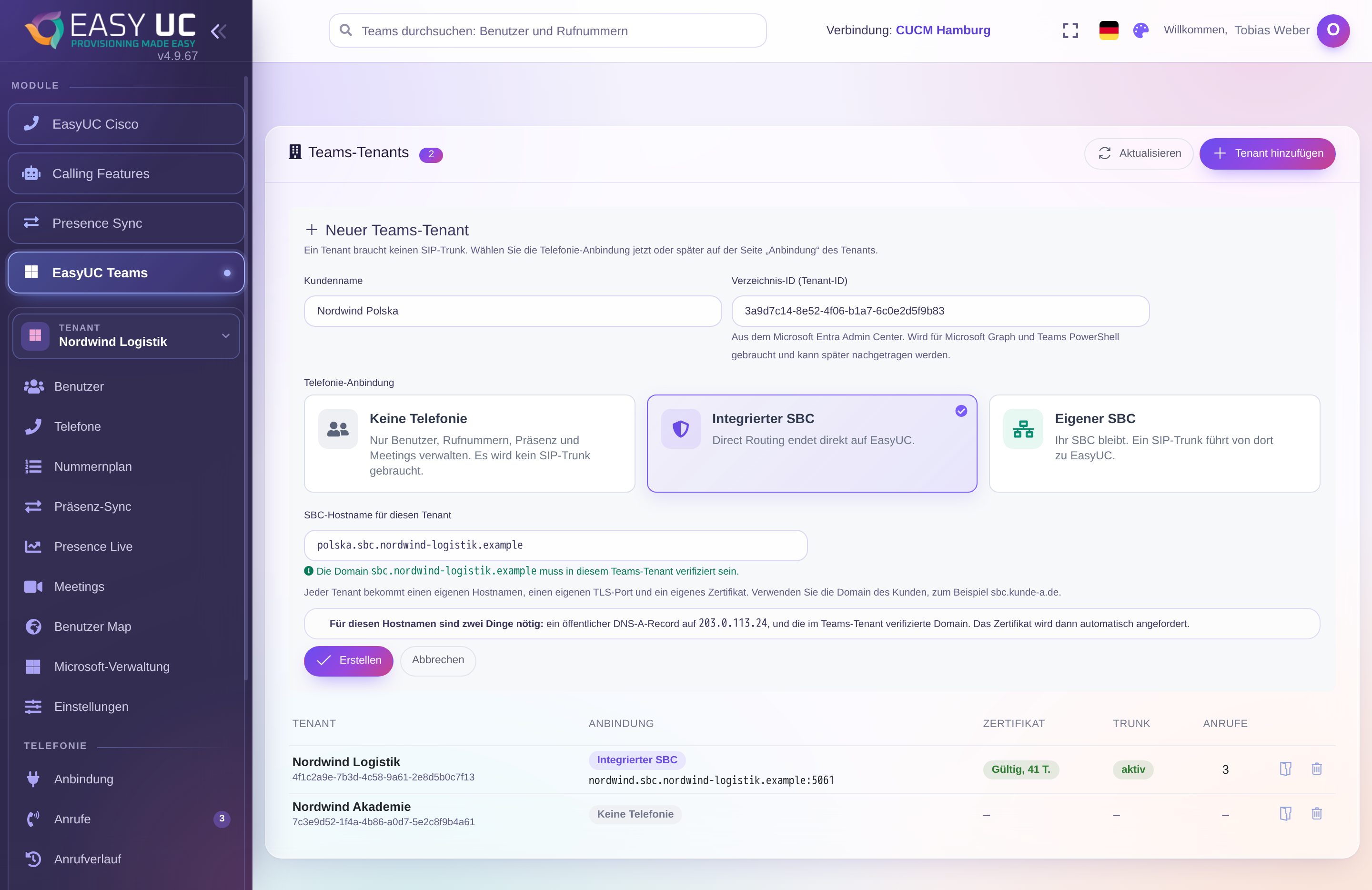
New tenant with choice of connection
When you create a tenant you choose one of three cards: No telephony, Integrated SBC or Own SBC. Demo data.
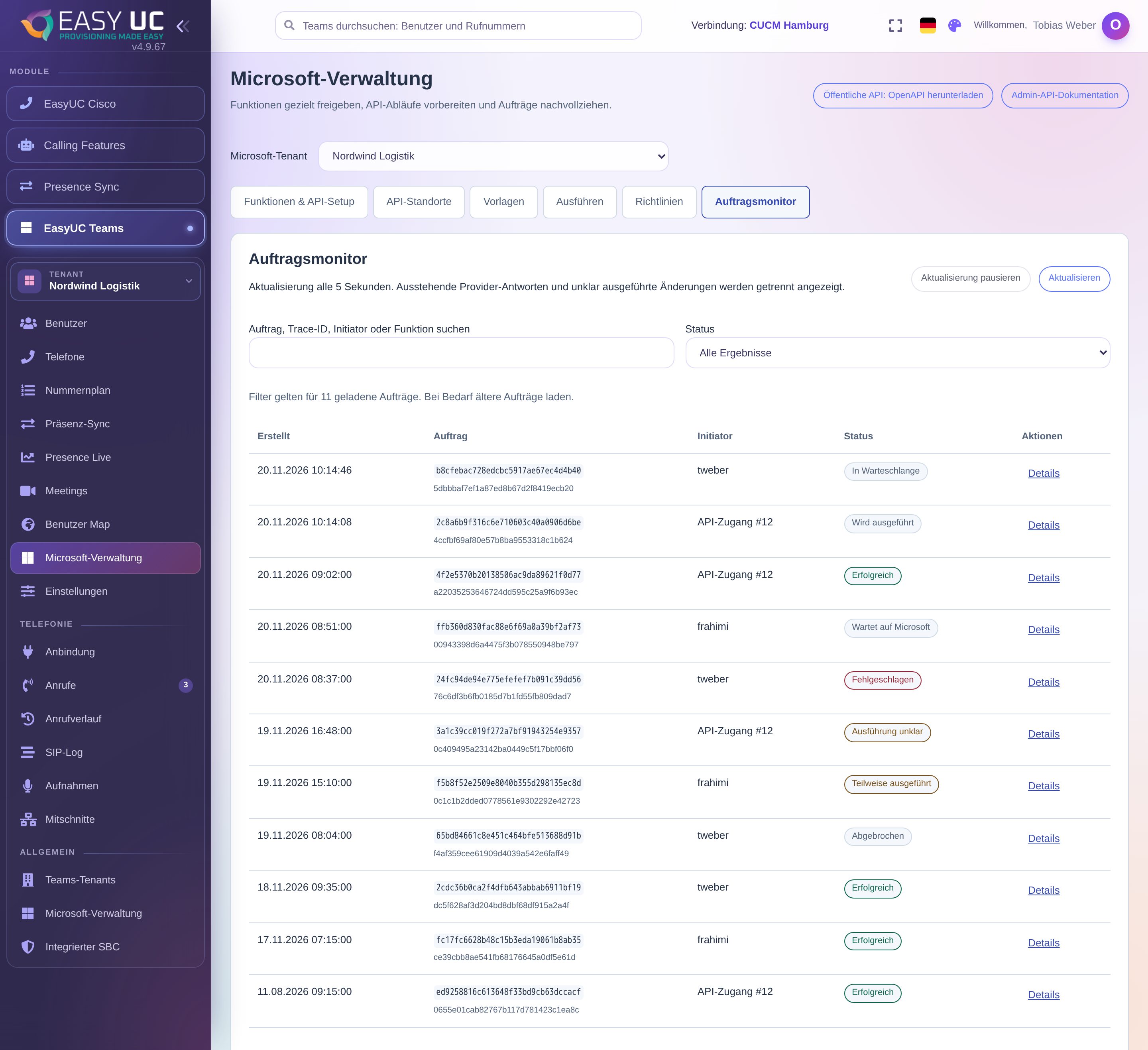
Job monitor of Microsoft management
The job monitor with jobs in every status, search, status filter and actor. Demo data.
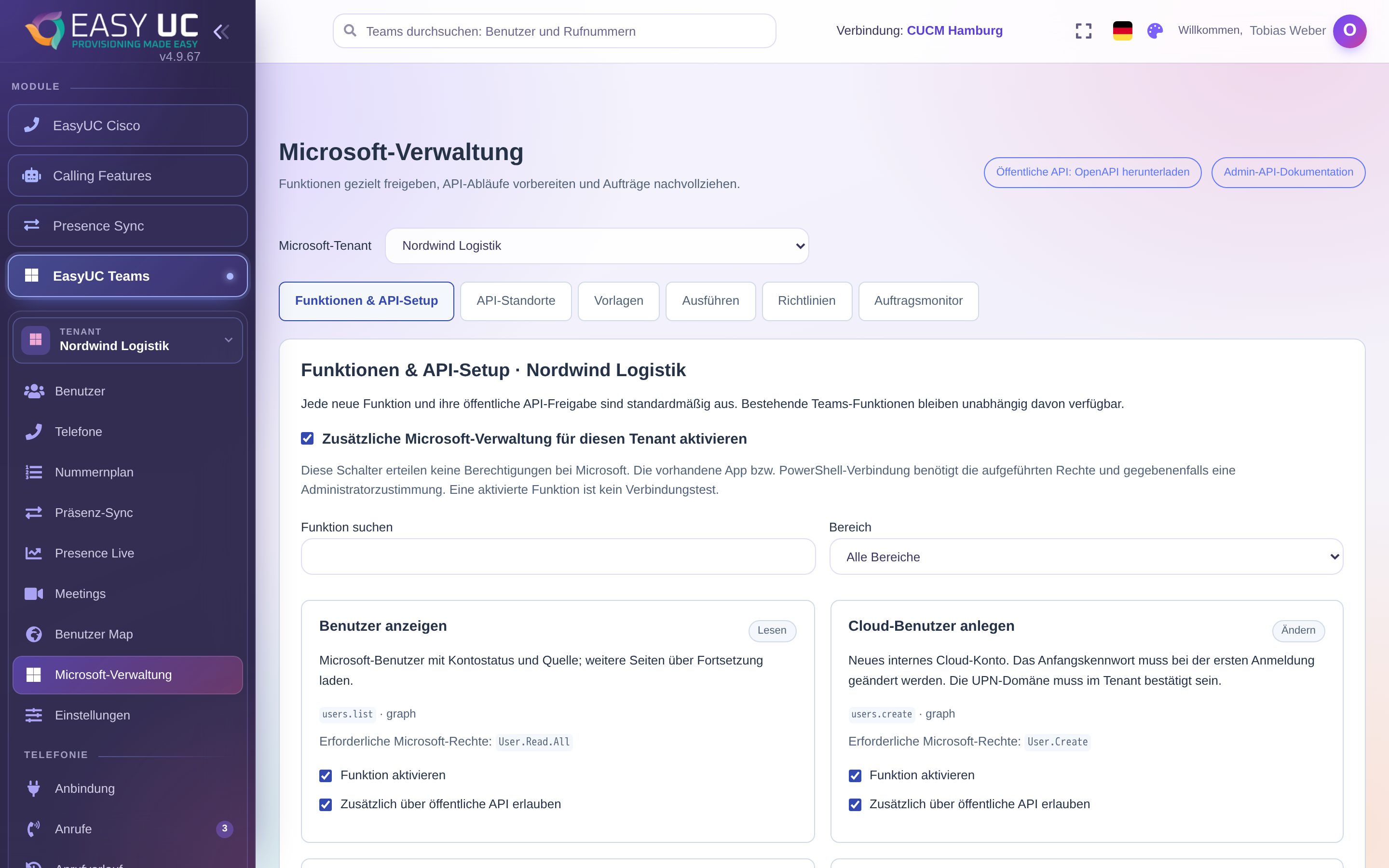
Functions and API setup
The “Functions & API setup” tab with main switch, search and group filter. Each action is enabled separately. Demo data.
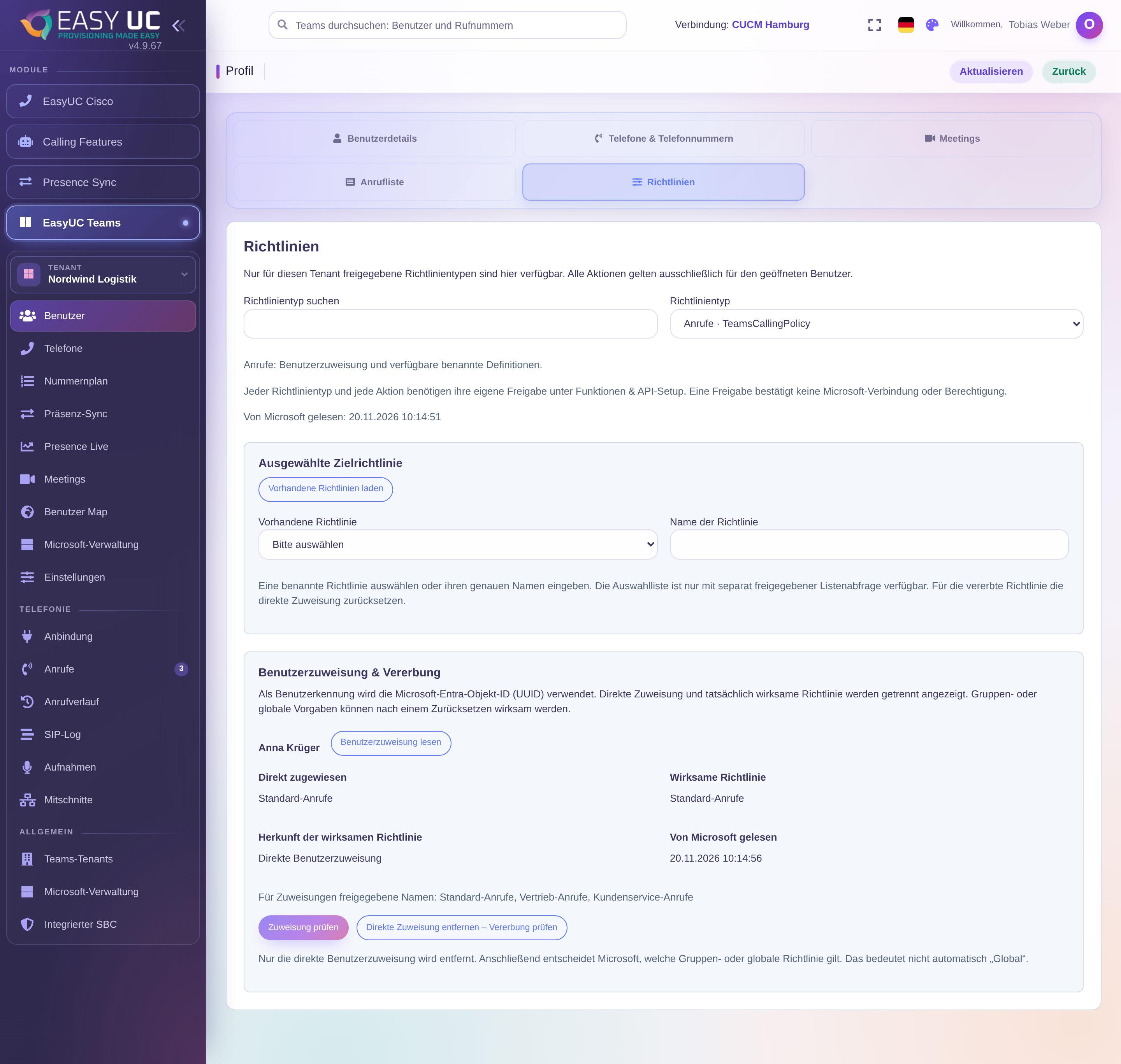
Policies in the user profile
The “Policies” tab of a Teams user with the type Calling and the assignment that was read. Demo data.
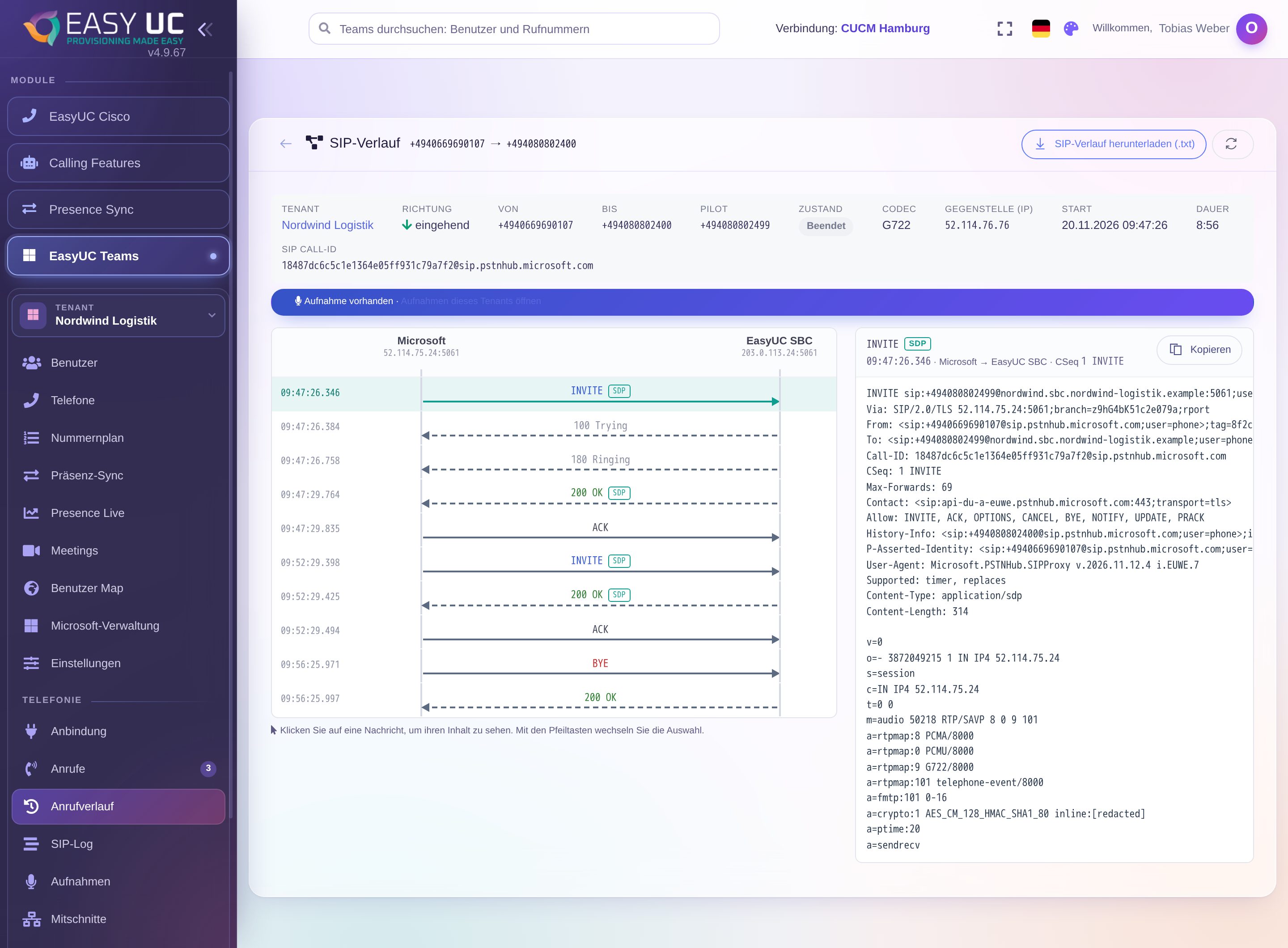
Call detail with SIP ladder diagram
A call through the integrated SBC with the SIP flow as a ladder diagram. The selected message is shown next to it in full. Demo data.
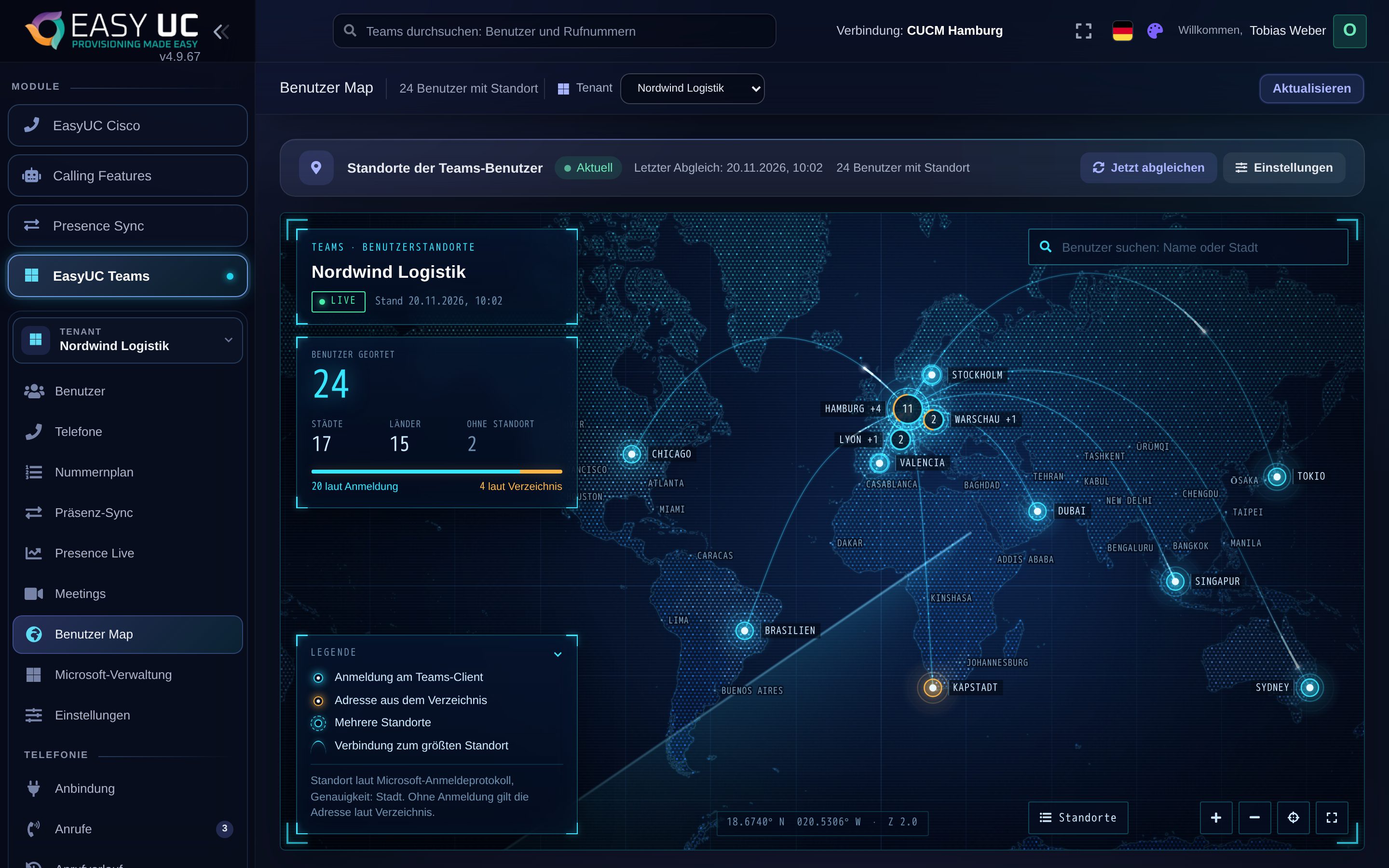
User Map in the Midnight theme
The same world overview in the dark Midnight theme. Demo data.
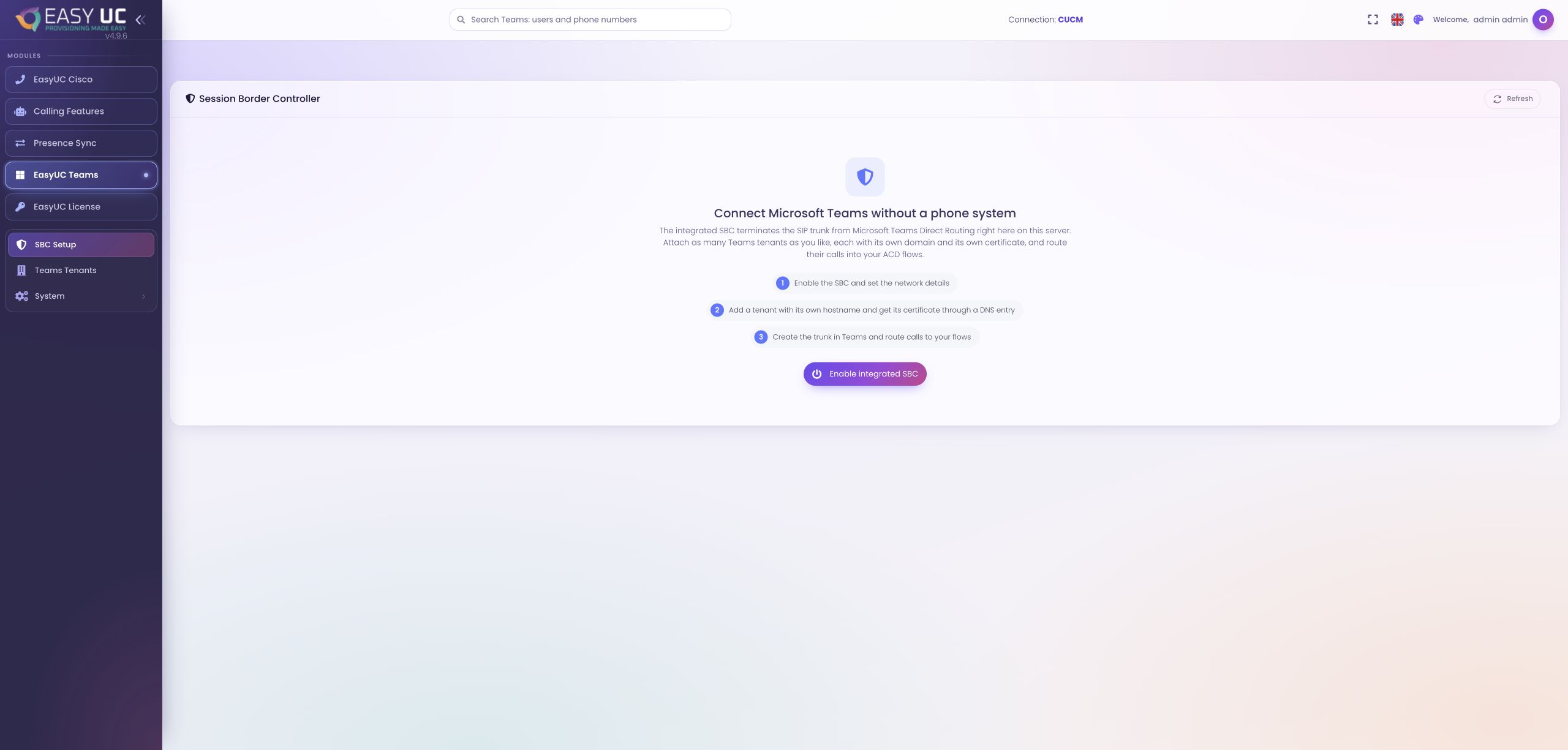
Set up Microsoft Teams
The integrated SBC setup screen for Microsoft Teams Direct Routing. This capture shows the lab environment before activation.
These captures show the actual EasyUC interface in a lab/demo environment. Open an image to see it in more detail. Parts of the lab interface are not yet fully translated. When a matching language version is unavailable, the different screenshot language is labelled.
Features in practice
Manage Microsoft Teams and connect it to telephony
From the User Map through meetings and user profiles to the connection through the SBC: the Teams features of EasyUC 4.9.67, explained with their original views.
User Map: where your Teams users work See on a world map from which places the users of a tenant use the Teams client.
The User Map reads the successful sign-ins to the Teams client from the sign-in log of Microsoft Entra and shows the number of users per place. If the log is missing or a user has not signed in, EasyUC uses city and country from the directory. The colour of a marker shows which source the location comes from.
EasyUC draws the map itself, without a map service from the internet. The location is accurate to the city, and IP addresses are not stored. The feature is switched off per tenant at first. If you switch it off, EasyUC deletes the stored locations. Opening the map, searches and opening the locations of a user are recorded in the audit log.
How to use this feature
- Grant permissions
Give the app registration of the tenant the application permissions AuditLog.Read.All and User.Read.All with admin consent. The sign-in log requires Microsoft Entra ID P1 or P2.
- Switch on locations
Open the User Map, expand the settings and switch on “Store locations”. The bar shows for each permission whether it has been granted.
- Read the map
Key figures, location list and legend are on the map. Use the search to find a user or a city. Zoom with the mouse or the keyboard.
- Open a location
A click on a location lists its users with client, operating system and last sign-in. From there you open the Teams profile of a user.
View and search the meetings of a tenant Find meetings that are in progress, upcoming or ended by subject, participant or e-mail address.
EasyUC fetches the calendar entries of the tenant through Microsoft Graph and stores them in the database of your appliance. This makes it possible to search for participants, including external addresses of past meetings. The detail page shows participants with response, attendance and duration. Transcripts and meeting chats can be added if you want them.
You switch on each data type separately per tenant: meetings, transcripts, chats. EasyUC does not store appointments marked as private or confidential. Every read of a transcript or chat is recorded in the audit log. EasyUC deletes ended meetings after the configured retention of 7 to 365 days.
How to use this feature
- Prepare access
Grant the Graph permissions for calendars and online meetings and create the application access policy in Teams. EasyUC shows the PowerShell commands with your application ID.
- Switch on data types
In the settings of the page, switch on “Store meetings”, and transcripts and chats if needed, and set the retention.
- Search and filter
The tiles separate meetings that are in progress, upcoming, ended and cancelled. Filters narrow the list down to external participants, transcripts or a period.
- Open a meeting
The detail page shows participants, transcript and chat on separate tabs. A transcript can be searched, copied and downloaded as text.
Teams users in the profile One profile per Teams user with account, phone number, phones, meetings, call list and presence.
The profile brings together what is otherwise spread across several admin centres: account data, Teams phone number, Teams phones and the meetings of the user. The call list shows the call records from Microsoft Graph, including calls from Teams to Teams, and separately the calls through the EasyUC SBC. Microsoft provides the records for the last 30 days at most.
The evaluation “Presence by time share” shows how long a user was in which status over the last 24 hours or 7 days. It is switched off per tenant at first, only administrators switch it on, and the measured data is kept for 7 days at most. Call destinations can be anonymized per tenant. The masking happens on the server and also applies to existing entries.
How to use this feature
- Find a user
Open “Users” in the menu of the tenant. Search by name, e-mail, department or phone number and filter by active accounts, disabled accounts or guests.
- Read the profile
The tabs separate user details, phones and phone numbers, meetings and call list.
- Check the call list
Select 24 hours, 7 days or 30 days. For the records from Microsoft Graph the app registration needs the permission CallRecords.Read.All.
- Set data protection
An administrator switches the presence statistics on or off and anonymizes the call destinations. Both changes are recorded in the audit log.
Choose the telephony connection per tenant Each tenant gets the connection that suits it: integrated SBC, own SBC or no telephony.
With the integrated SBC, Direct Routing ends directly on EasyUC. If you already run an SBC, it stays the only one Microsoft knows, and a SIP trunk leads from there to EasyUC. If EasyUC is only to manage users, phone numbers, presence and meetings of a tenant, choose “No telephony”.
The menu of a tenant follows the connection. Calls, call history, SIP log, recordings and captures per tenant are available with the integrated SBC. With your own SBC the calls appear in the SIP trunk call monitor. Changing the connection is guided: EasyUC first checks what depends on it.
How to use this feature
- Create a tenant
Under “Teams tenants”, click “Add tenant” and choose one of the three cards.
- Enter the credentials
Under “Settings”, enter directory ID, application ID and client secret and test the credentials.
- Set up the connection
Depending on the card, the “Connection” page guides you through hostname, certificate and trunk or through selecting the SIP trunk to your SBC.
- Change if needed
Choose a different card. EasyUC checks the change and, if you want, removes its own objects in Microsoft before it saves.
Microsoft management with job monitor Enable individual management actions for Microsoft 365 and follow every job through to its result.
Microsoft management adds actions for users, licences, groups, teams, channels, mailbox settings, Intune devices, service health and Entra changes to the Teams area. You enable each read and write action separately per tenant. After installation everything is switched off. Enabling an action in EasyUC grants no rights at Microsoft.
API sites and templates bundle recurring sequences, for example creating a user, assigning a licence and adding the user to a group. Before execution a preview shows the steps. The job monitor gives actor, status and steps for each job. On an error it shows component, code, HTTP status and trace ID. The same actions, enabled individually, are also available through the public API.
How to use this feature
- Switch on management
Open “Microsoft management” in the menu of the tenant and, on “Functions & API setup”, switch on management and the actions you want.
- Run an action
On “Run actions”, select an enabled action, fill in the form and check the preview.
- Follow a job
The job monitor refreshes every 5 seconds. Open the details to read steps, result or error.
- Bundle sequences
Under “API sites” and “Templates”, create recurring sequences with parameters.
Read, assign and edit Teams policies A tested catalogue of 45 policy types, each enabled separately, with the option to limit the permitted names.
The catalogue covers 45 types of Teams policies. Per type you enable what is permitted: list, read definition, read user assignment, assign, use inheritance and, where Microsoft allows it, create and edit. In addition you limit per type the policy names that may be assigned directly.
In the profile of a Teams user the “Policies” tab only appears once management is switched on, the account has the matching right and an action for user assignments is enabled. It shows only the enabled types. The rules also apply to API jobs and templates.
How to use this feature
- Enable types and actions
On “Functions & API setup”, switch on the actions you want for each policy type.
- Limit names
For each type, choose “All named policies” or “Selected names only” for direct assignments.
- Read the assignment
Open the “Policies” tab in the user profile. It shows the direct and the effective policy and where it comes from.
- Assign or reset
Assign an enabled policy or use inheritance again. EasyUC creates a job for this, which the job monitor shows.
Set up the integrated SBC Manage the connection between Microsoft Teams Direct Routing and EasyUC in one place.
The integrated Session Border Controller terminates the Microsoft Teams Direct Routing SIP trunk on the EasyUC server. Base settings apply to the SBC as a whole, while each tenant has its own hostname and certificate. This lets you assign different tenants to their own domains.
The actual screenshot shows the entry screen before activation. Setup covers network details, a tenant with its hostname and certificate, and the Microsoft Teams trunk. Once configured, the SBC view shows service status and connected tenants.
How to use this feature
- Open SBC setup
Open the SBC page under Microsoft Teams and start setting up the integrated SBC.
- Enter network settings
Enter the public IP, local media IP and intended TLS and RTP ports. Complete the certificate-request settings.
- Add a tenant and certificate
Add a Teams tenant with its hostname. Follow the tenant page’s instructions for DNS validation and the certificate request.
- Configure the trunk and routing
Set up the Direct Routing connection in Microsoft Teams and map incoming calls to the intended flows. Then check the service and trunk status.
How does this become a working process? Our use cases show each step directly in the EasyUC interface.
Explore practical examples